
Guides
TattooMe, step by step
Short step-by-step guides for each feature: how to set it up, from the first tap to the first booking.
Reminders & waitlist
Reminders, rebooking, waitlist
- Appointment reminders 24 h and 2 h beforeEvery customer gets a reminder the day before and two hours before the appointment – as a push notification, or by e-mail if push is not possible. Forgotten appointments become rare.
- Rebooking reminders per serviceSet for each service when customers should come back, for example after 4 weeks. TattooMe then sends a push: time for your next appointment – with a direct way to book again.
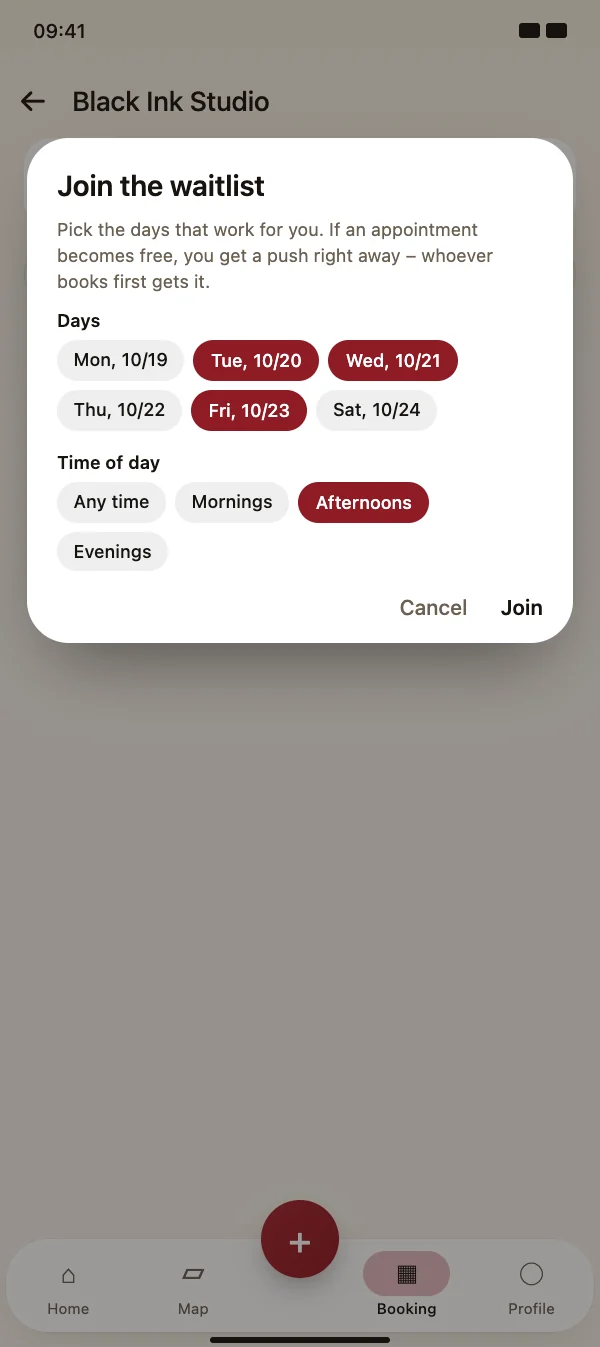
- Waitlist for fully booked daysIf no time fits, customers join the waitlist with the days and time of day that suit them. When an appointment becomes free, all matching customers get a push at the same time – whoever books first gets the slot.
- Recurring appointments as a seriesBook regulars every few weeks in one go. TattooMe checks every date first, shows which ones are free and suggests other times for taken ones. The customer gets one notification for the whole series.
Client records & forms
Client records, photos and forms
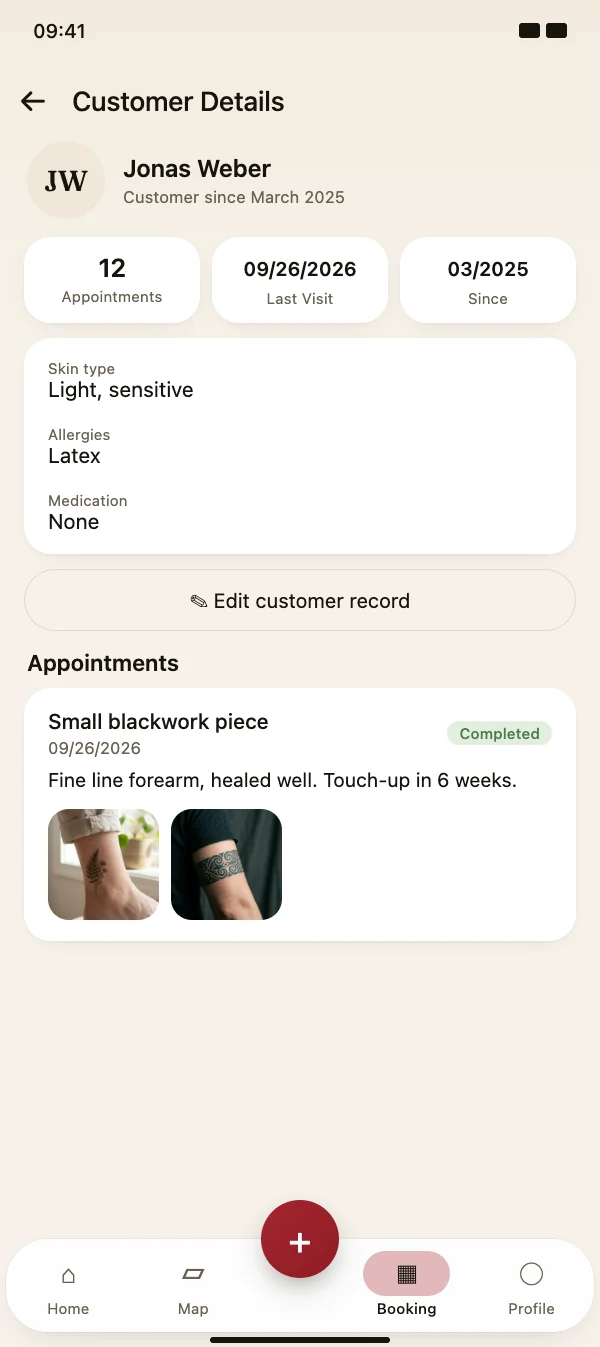
- A record with your own fieldsStore phone, e-mail and notes, and create your own fields for what matters in your work – for example allergies, nail shape, colour formula or material used.
- Notes and photos for each appointmentAfter the appointment, note what you did and add photos of the result. Next time you see at once what the customer had last time.
- Forms and consent formsCreate forms with info text, text fields, yes/no questions, checkboxes, dates and a signature – or start from a template. Assign them to the services they belong to.
- Filled in on the phone, saved as a PDFIf a service has a form, the customer gets a link once you confirm the appointment and fills it in in the browser – with a signature if your form has a signature field. Or hand over your device in the studio. The PDF is saved with the booking and in the client record.
Reviews
Real reviews from real appointments
- After the appointment, TattooMe asks how it wentAbout two hours after your appointment you get a notification. You can also rate it straight from the booking details.
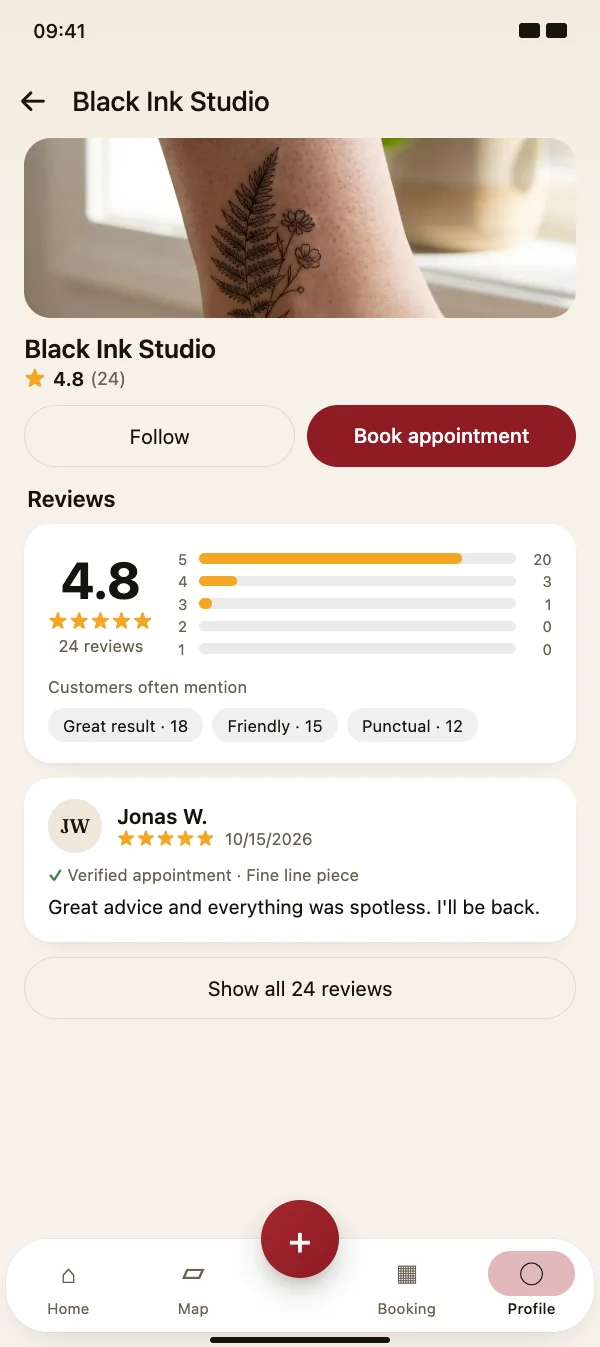
- Stars, tags and a few wordsChoose one to five stars, tap what you liked and add a comment if you want. Your review appears with your first name and initial.
- Stars on the profile, on the map and on the webThe profile shows the average, the distribution from five to one star and what clients mention most. The stars also appear on the map and on the profile page on the web.
- Pros reply publiclyYou get a notification for every new review and can reply publicly – say thank you or respond calmly to criticism. The client is notified about your reply.
Gift vouchers
Sell gift vouchers online
- Sell and issue vouchersSwitch on online sales and customers can buy vouchers on your profile. In the studio you issue a voucher with an amount, recipient and message – as a PDF to print or send.
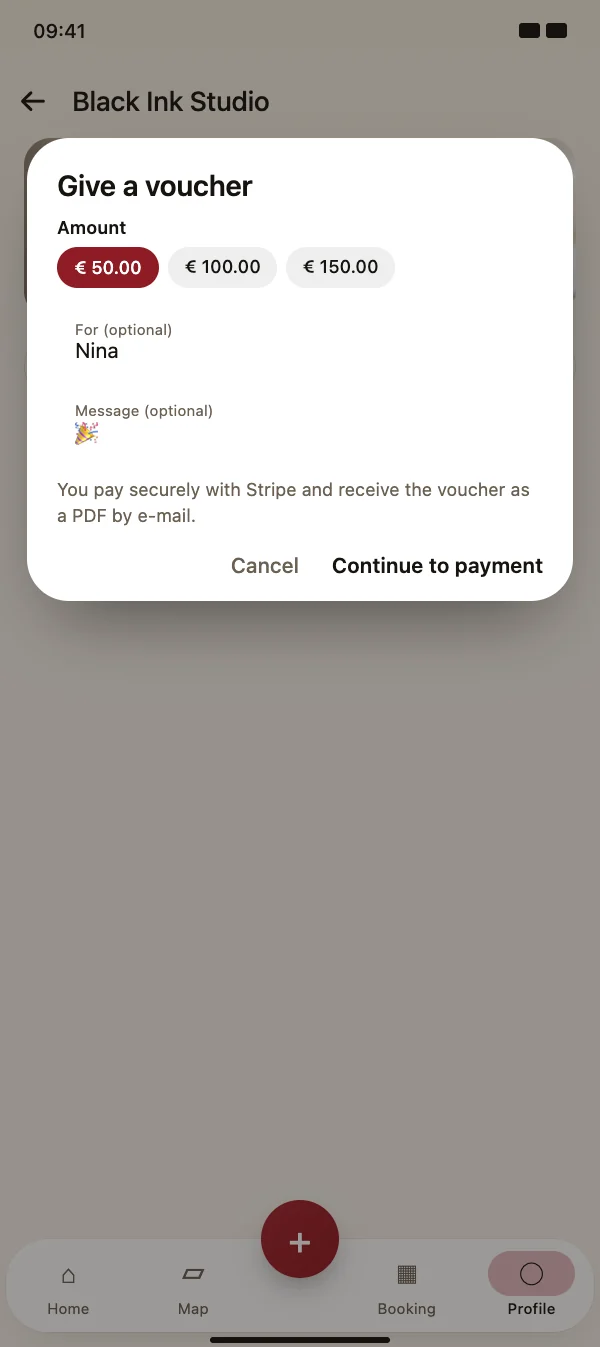
- "Give a voucher" on your profileCustomers pick an amount, add a name and a message and pay securely with Stripe. The voucher arrives as a PDF by e-mail – ready to give as a present.
- Redeem with the remaining balanceEnter the code in the booking, check the value and redeem all or part of it. The remaining balance stays on the voucher, and the amount appears on the invoice and in the tax report.
Promotions
Discounts on certain days
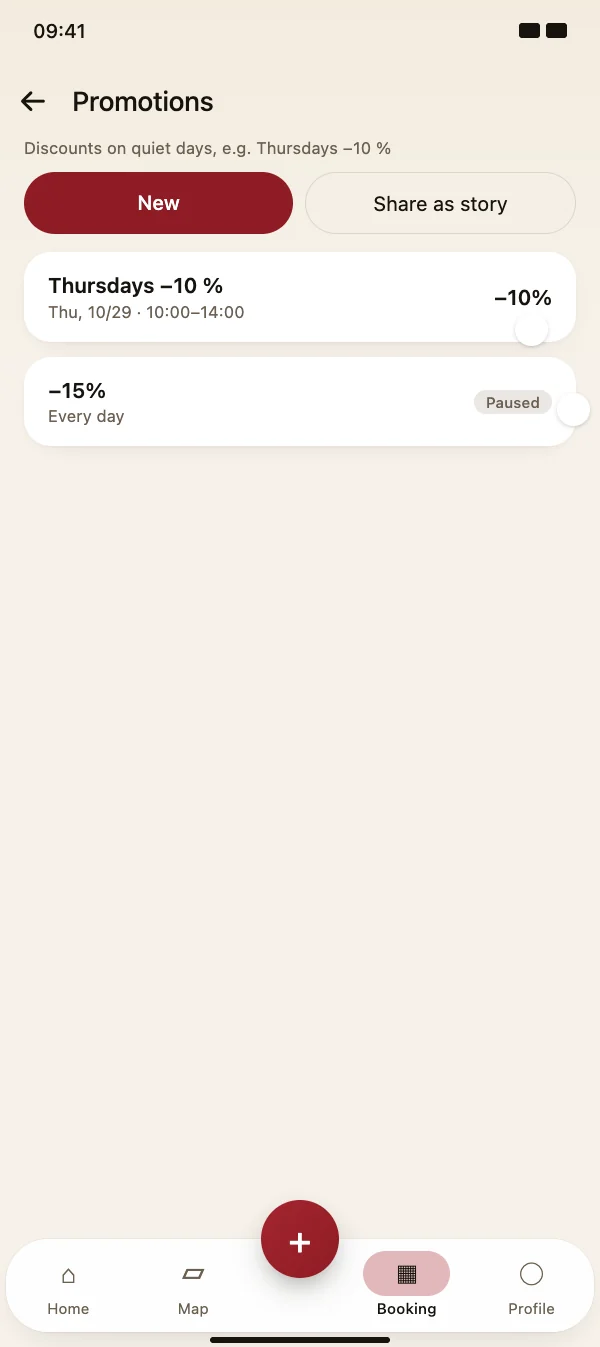
- Set up the promotionUnder Appointments, then the menu and Promotions, tap New, enter a name and the discount in percent, and choose the days it applies to.
- Customers see the discountThe promotion appears as a banner on your profile. When customers pick an appointment, the days and times that qualify are marked, and the service shows a hint.
- The price is fixed when bookingThe reduced price is calculated on the server and shown with the original price crossed out. The deposit is taken from the reduced price, too.
- Share the promotion as a storyThe story template shows the discount, the days, the time window and the services, plus the free appointments on those days and your booking link.
Invoices & deposits
Invoices, e-invoices, deposits
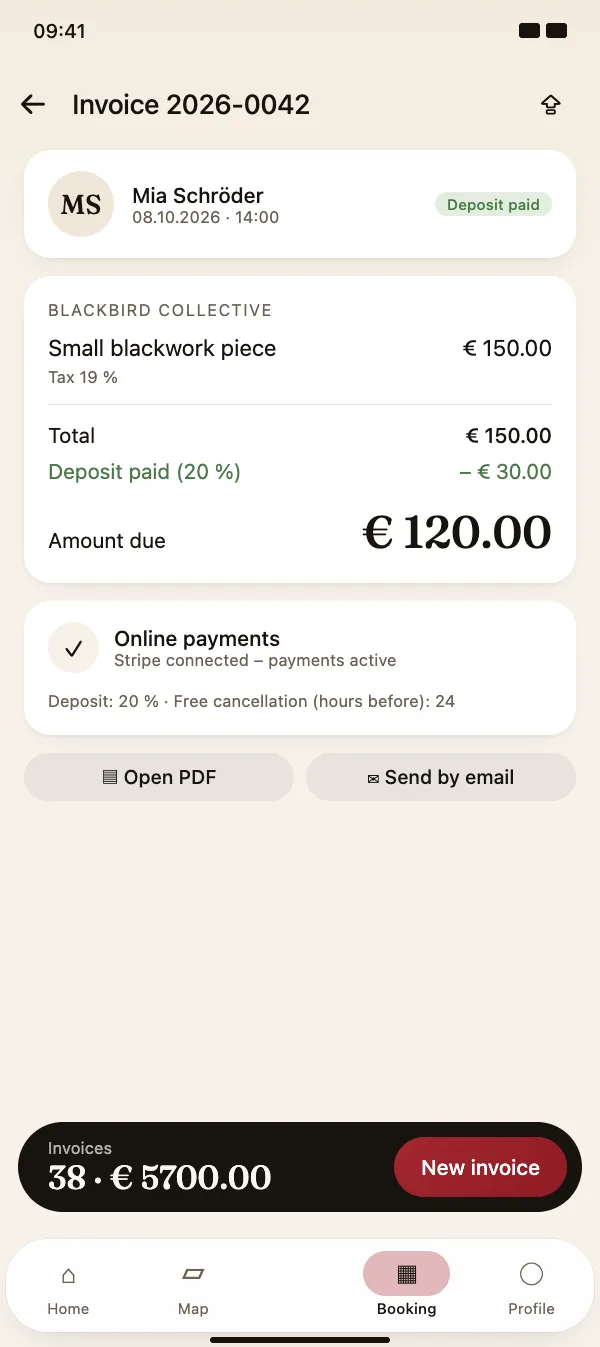
- Deposits by card when bookingConnect your Stripe account once and decide how much customers pay in advance. The money goes directly to your account – TattooMe takes no commission, only Stripe's fees apply.
- Invoice from the appointment in one tapCustomer, service, price and tax are already filled in. A paid deposit is deducted automatically, so the invoice shows exactly the balance due.
- Professional PDF, sent by emailEvery invoice is created as a clean PDF with all mandatory details and can be sent to the customer by email straight from the app.
- Cancellations handled correctlyIf an appointment is cancelled in time, the deposit is refunded automatically; late cancellations keep it. Issued invoices are never changed – they are cancelled with a cancellation invoice that has its own number.
Team board & roles
Weekly plan, drag & drop and team roles
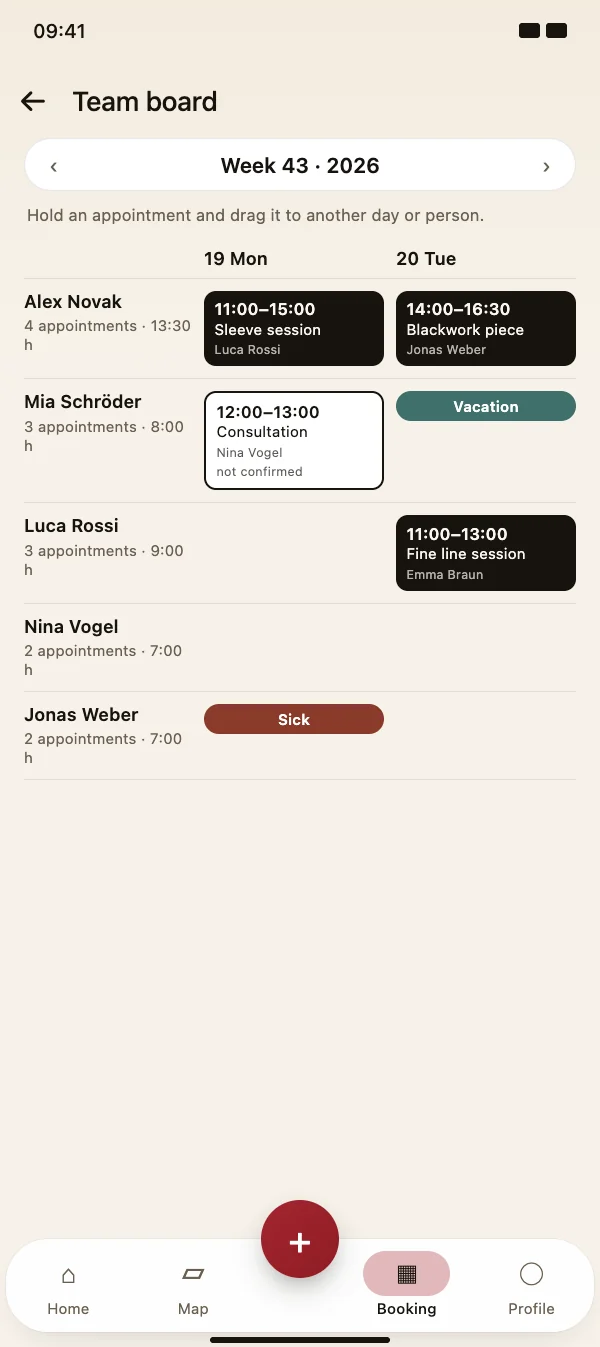
- The whole week at a glanceOne row per person, one column per day: appointments with time, service and customer, plus holidays and sick days from the time tracking. On a tablet you see the whole week at once.
- Move appointments by drag & dropHold an appointment and drag it to another day or another person. TattooMe checks whether that person offers the service and is free – and notifies your customer about the new time.
- A role for everyone in the teamChoose a role for each team member: employee, foreman, accounting or management. Each role has clear rights – no shared passwords, no access to more than is needed.
- Work in the business with one tapTeam members switch into your business from the menu and see exactly what their role allows. A banner always shows in whose business they are working, and one tap takes them back to their own area.